Setting up R2 buckets locally on Windows
I host these blog posts in an R2 bucket on Cloudflare - easy implementation using Workers, it's just convenient. However, something I noticed when testing parsing of these Markdown files was that I couldn't test it easily at all.
Uploading to Cloudflare's UI was not something I was looking forward to do in the future, and something like CloudBerry Explorer was OK in my experience for stuff like binaries but I wanted to know if it's some way I could write these directly in Obsidian or any editor for that matter (VS Code 🤮).
I was aware that if something like CloudBerry Explorer works, someone must've made an implementation for Windows drives.
Consulting the internet, first option I tried was S3Drive - didn't honestly read too much, downloaded it, fiddled with the auth and managed to connect to my R2 bucket (as it's just an S3 bucket), but I was met with their own interface, so it really wasn't that much of an advantage over CloudBerry Explorer.
Looking more, I found rclone, which is want I went with.
Tutorial
Downloading rclone
Installing rclone is trivial.
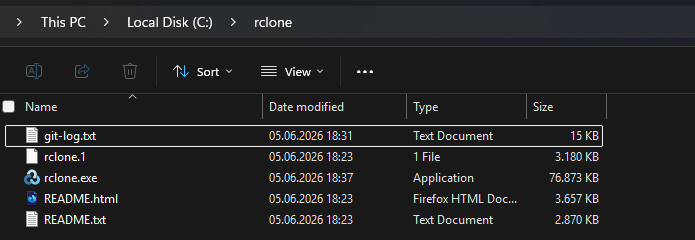
https://rclone.org/downloads/ has an archive for Intel/AMD & ARM x64 Windows machines -which I then extracted to C:\rclone
Installing WinFsp (required)
Due to the nature of rclone, and it's filesystem implementation, Windows can't quite use it yet. You'll need WinFsp, a compatibility layer, or better explained by them: "system software that provides runtime and development support for custom file systems on Windows computers - in this sense it is similar to FUSE".
WinFsp has a nice straightforward installer over at https://winfsp.dev/rel/
After installing, you can start setting up rclone.
Setting up rclone
Open up cmd, and type:
rclone config
You'll be met with something like this, but no buckets yet setup:
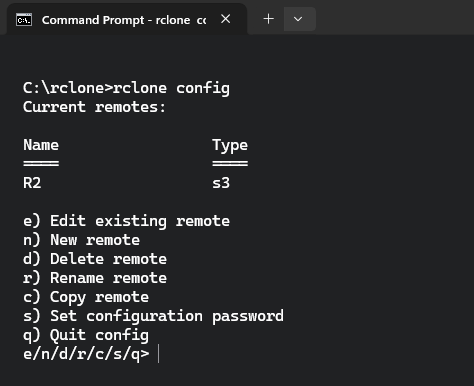
Press n to create a new remote.
You will then be prompted for the name of the remote, you can keep it simple as it only refers to the connection to S3, not the bucket - hence I've named it simply "R2".
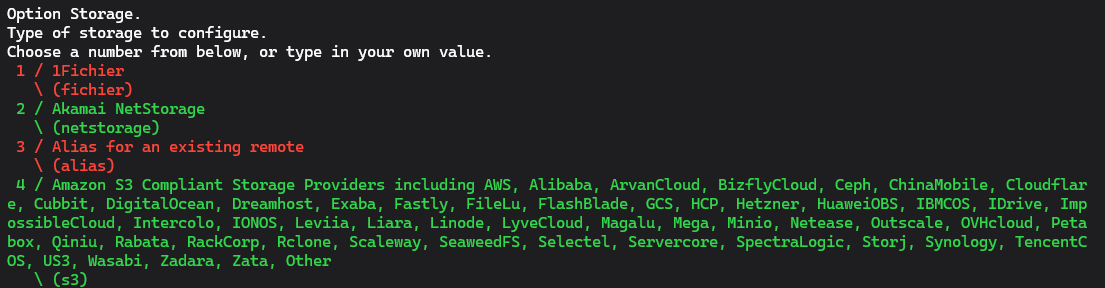
You will then be shown a large list of options of storage types. At the time of writing this, the 4th option is "Amazon S3 Compliant Storage (..., Cloudflare, ...) \ (s3)", which is what we want.
 Press
Press 4 or the number of the specific option.
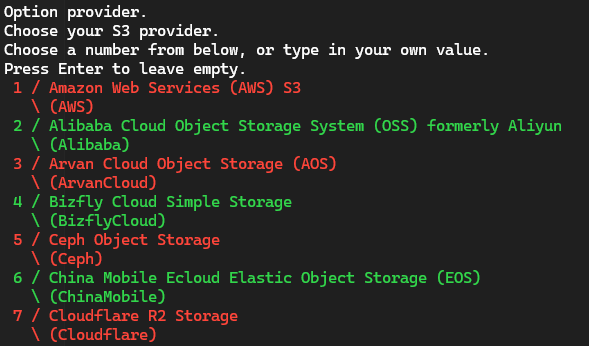
Another list will appear, now showing S3 Compliant Storage options for you to choose from. At the time of writing this, the 7th option is "Cloudflare R2 Storage".
 Press
Press 7 or the number of the specific option you need.
Next step is authentication - it isn't asking you for your Cloudflare Account password, so it'll be a bit more work before everything is done:
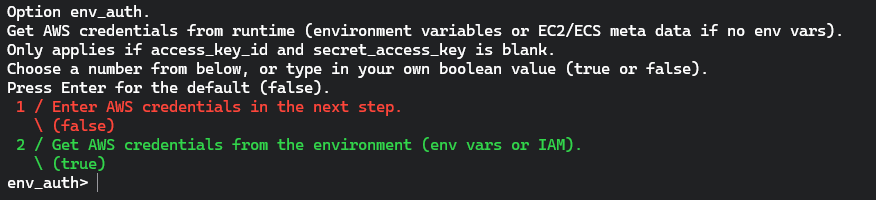
We will enter the credentials manually, so choose the first option.
We will need to create these credentials in the Cloudflare Dashboard.
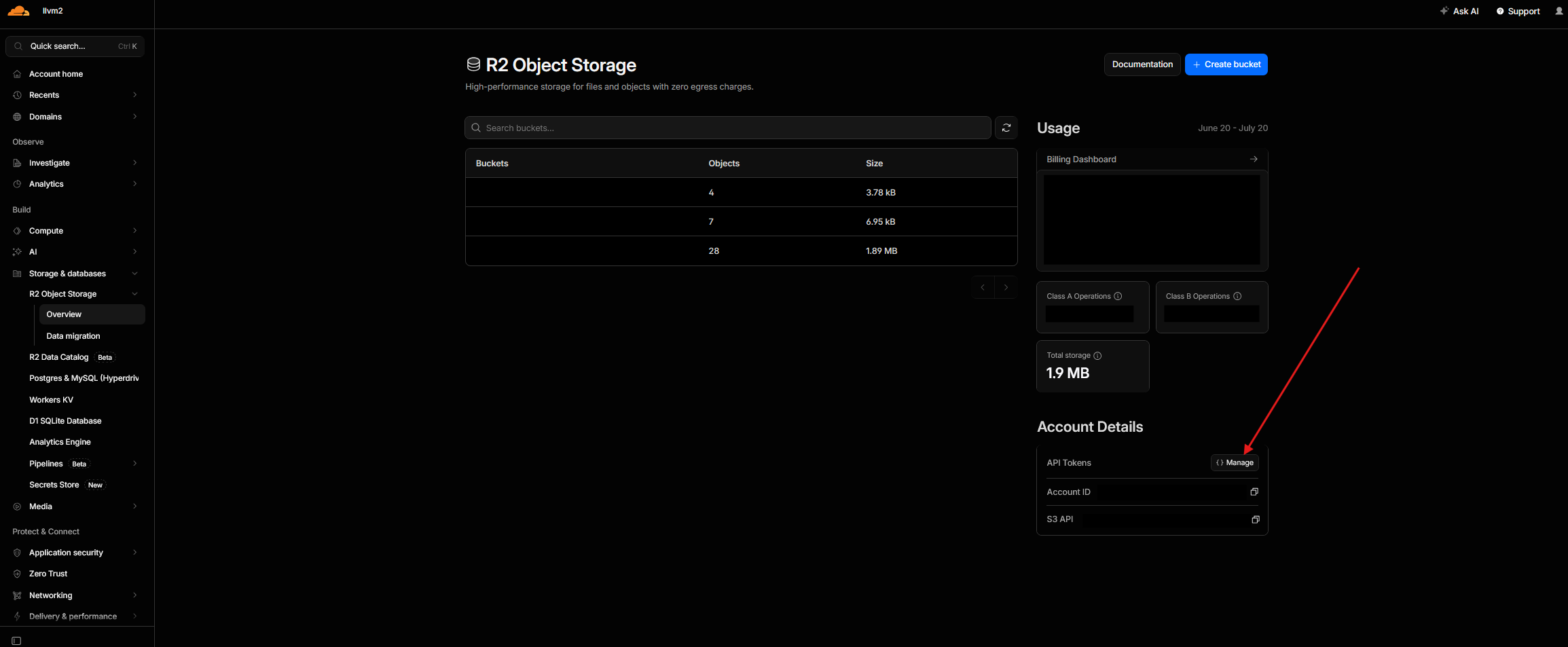
Access the "Manage" tab under your R2 buckets:
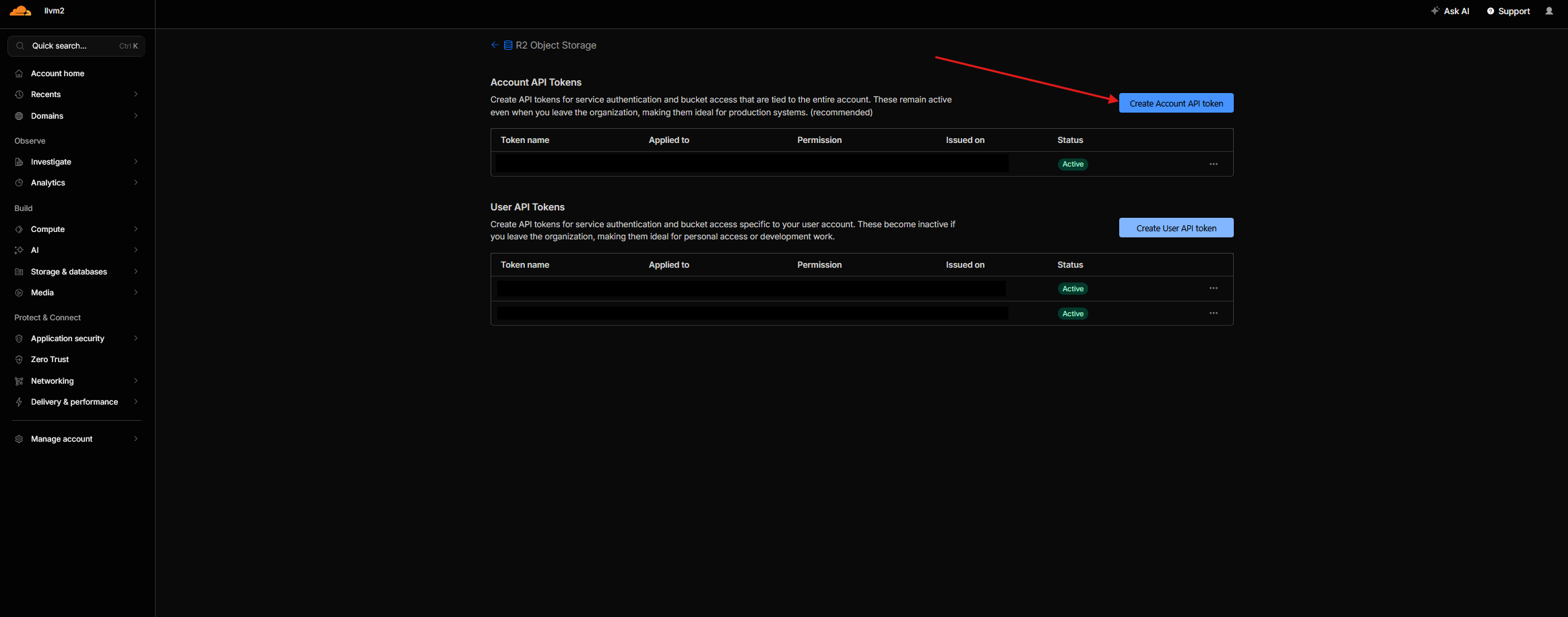
Create a new Account API Token: (not a User API Token)
You will then be provided everything necessary to continue:
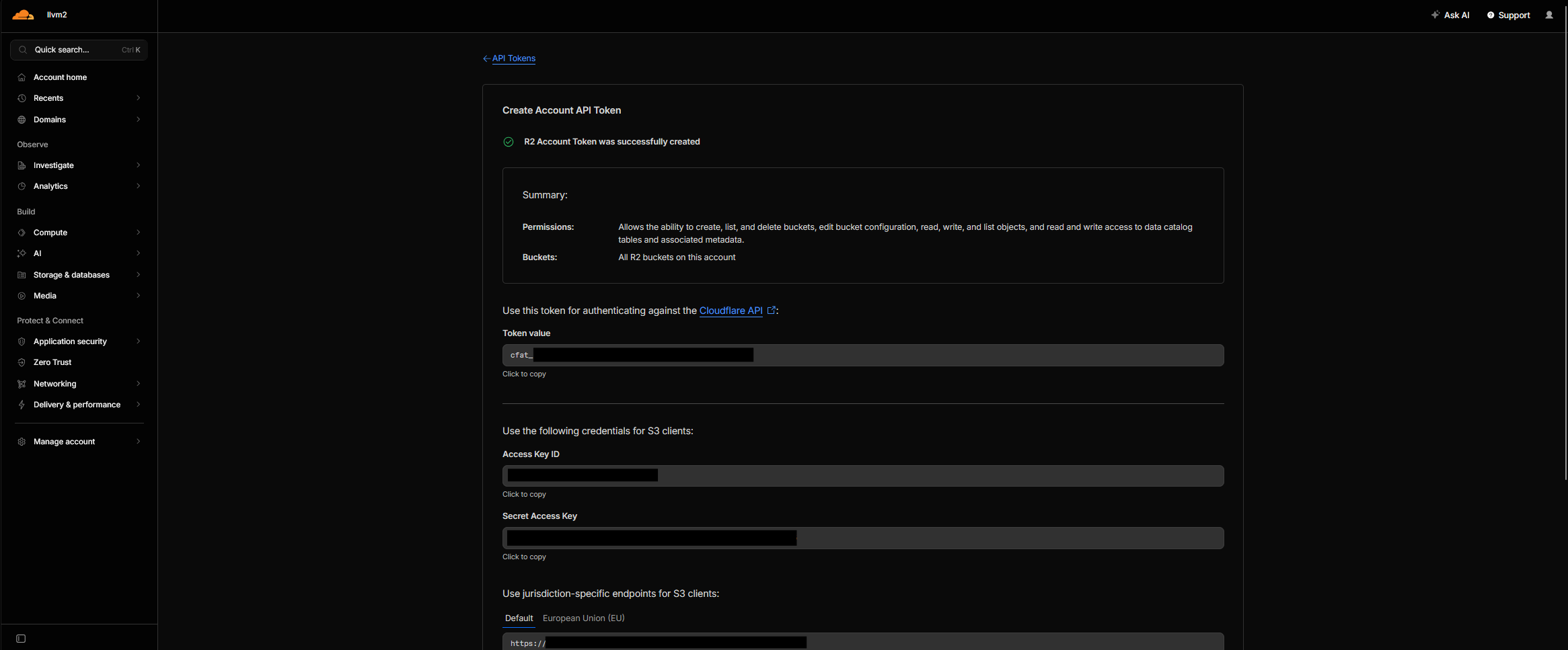
save the Access Key ID and Secret Access Key safely, as you'll only see these once.
Now back to rclone, it's asking for the Access Key ID, so paste it in:

Then the Secret Access Key (the password):

Leave the next option empty, as Cloudflare manages regions automatically.
After that, enter your endpoint (the https url):
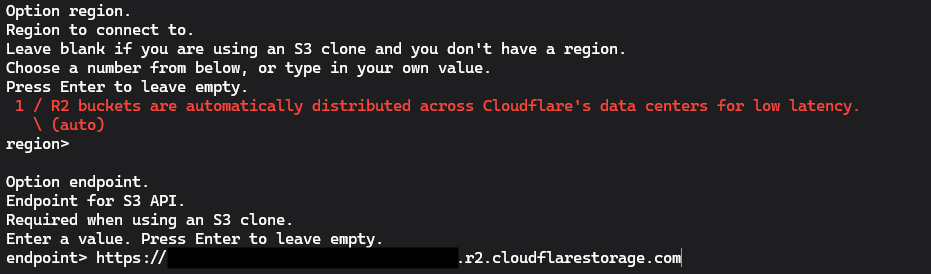
Leave the rest of the options to the default, unless you know what you're doing.
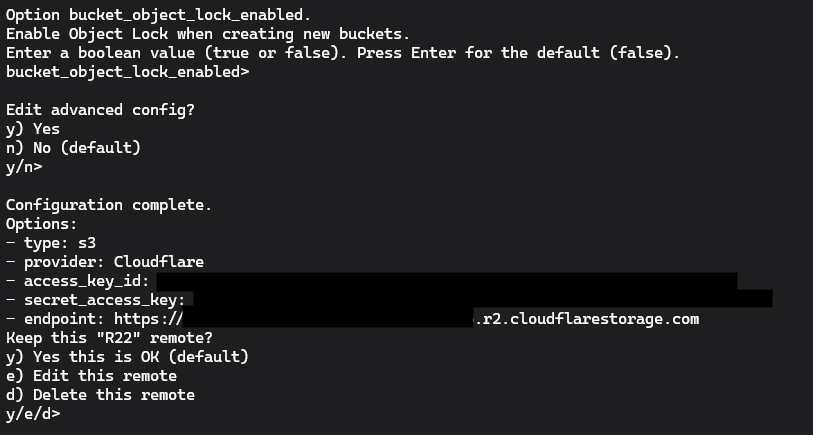 Now you've created a connection to the remote!
Setting up the drive with rclone
Now that we can connect to the bucket, we have to mount it.
In cmd, run rclone mount your-remote-name:your-bucket-name X: --vfs-cache-mode full
This will mount the bucket to the X: drive on Windows. Voila!
Changing the letter is as simple as changing it from the command.
Setting up Task Scheduler with rclone
You might've noticed that you have to run this command every time you boot up your PC to mount the drive, this can get boring.
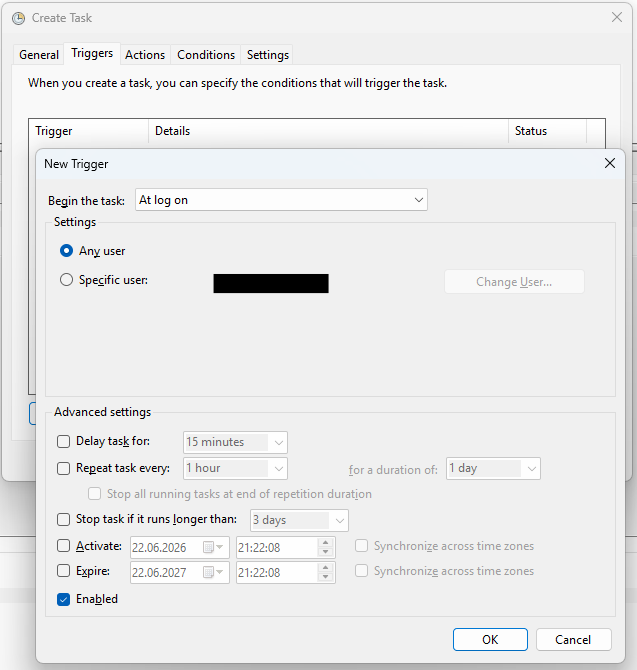
Let's make a task in Task Scheduler to make it run on every logon.
Launch Task Scheduler, and create a new Task:
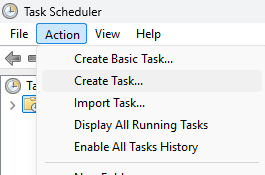
Create a new trigger to make it launch on user logon:
With the arguments from mounting command which in this case are mount your-remote-name:your-bucket-name X: --vfs-cache-mode full, add an action to run rclone:
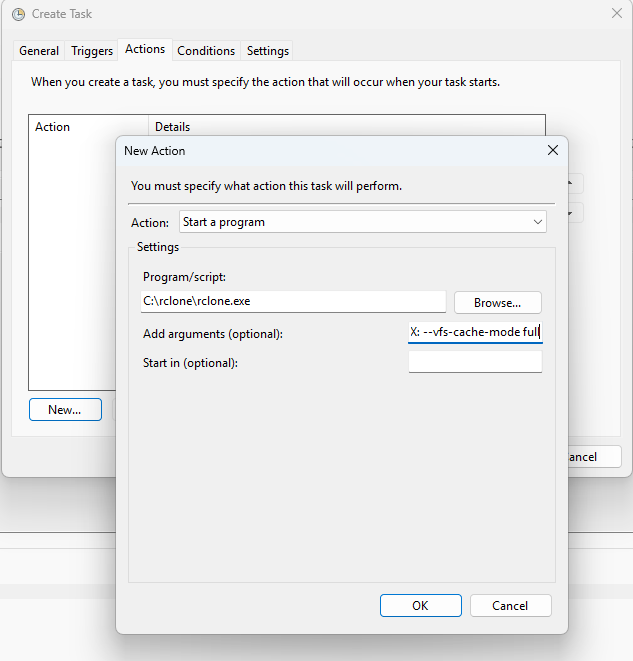
Now click OK, run it, and you're done.
Conclusion
This is my current setup and I've found no issues with it currently. If this helped you, I'm glad. Check out my other blog posts and socials here on my website: https://llvm2.ovh/